
Logo, Locations & Description
Customize your OMR Manager Profile Overview with your logo, service locations, and description to optimize company visibility and branding
How to optimize your OMR Reviews profile: upload your logo, set locations, and add description text
Here's what you'll find in this article 👇
-
Upload logo
-
Set locations
-
Edit description text
Logo
Your logo or GIF is a visual (animated) element that appears at the top of your profile. It represents your company's brand and branding, and it's crucial for brand recognition.
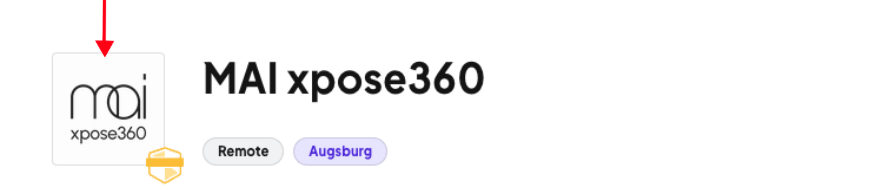
-2)
You can upload and update your logo or GIF in the OMR Manager under the "Profile Overview" tab.
The following specifications apply:
-
Logo: 64 x 64 pixels | Formats: jpeg, png
-
GIF: 64 x 64 pixels | Format: gif
To upload your logo, log in to your OMR Manager account and follow these steps below 👇:
Step 1
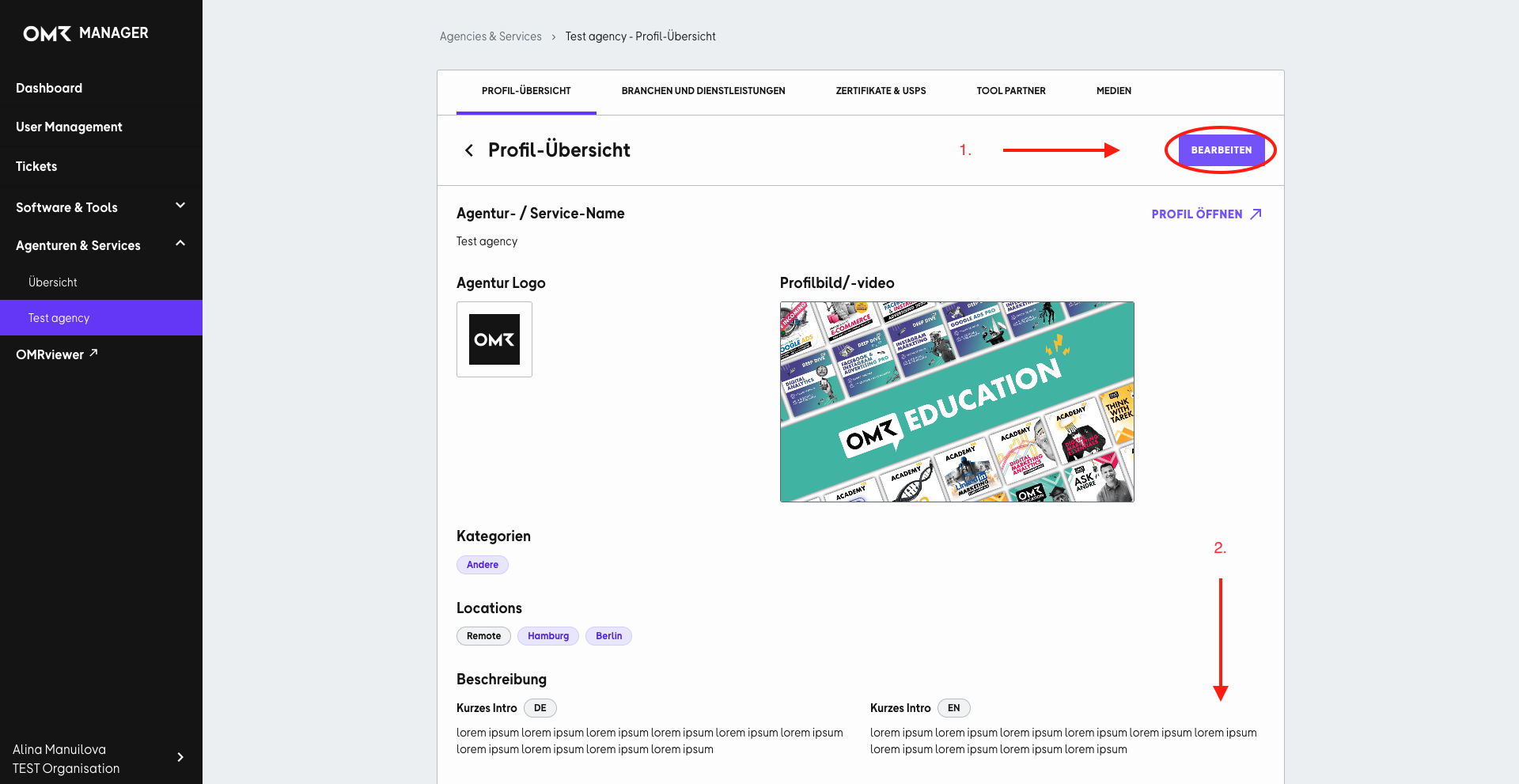
Click the "Edit" button in the upper right corner under the "Profile Overview" tab.
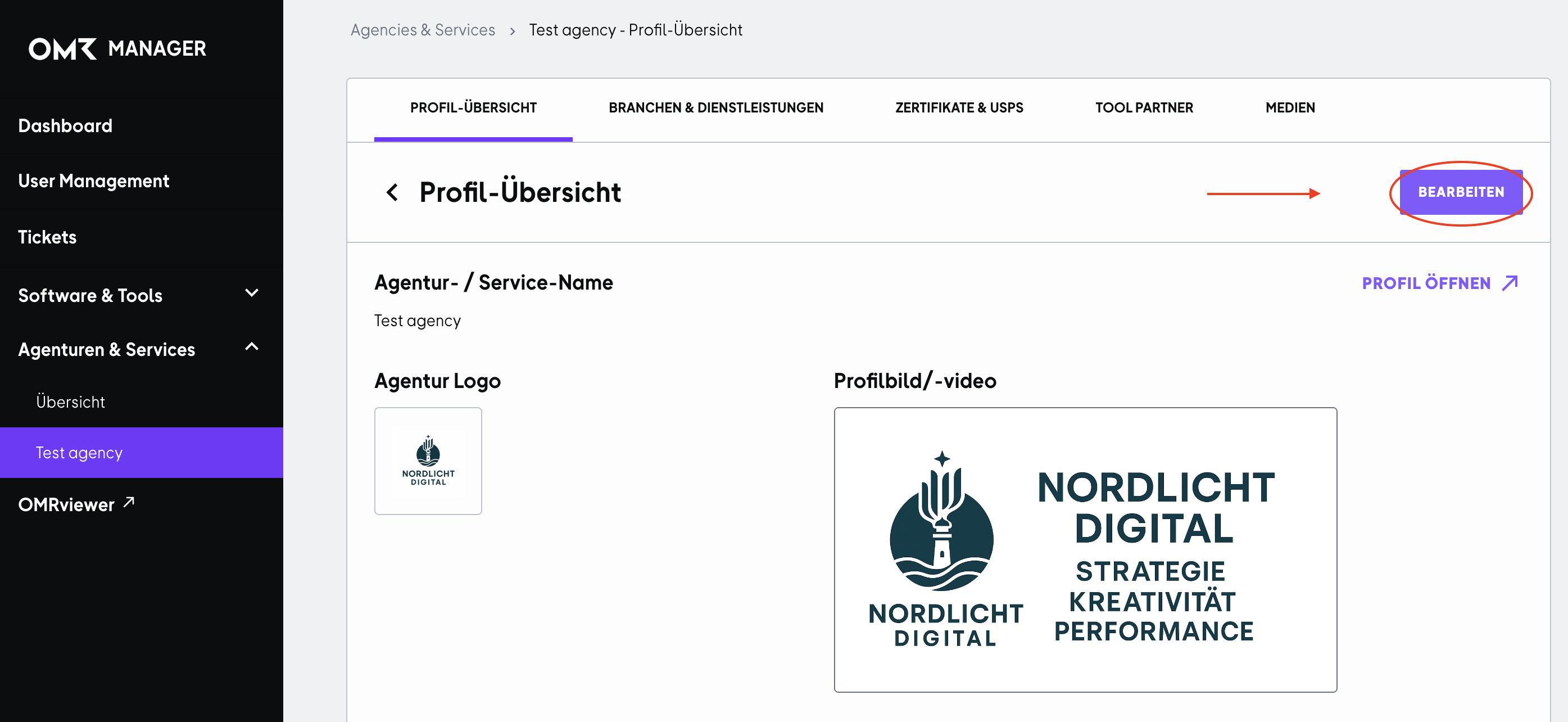
Step 2
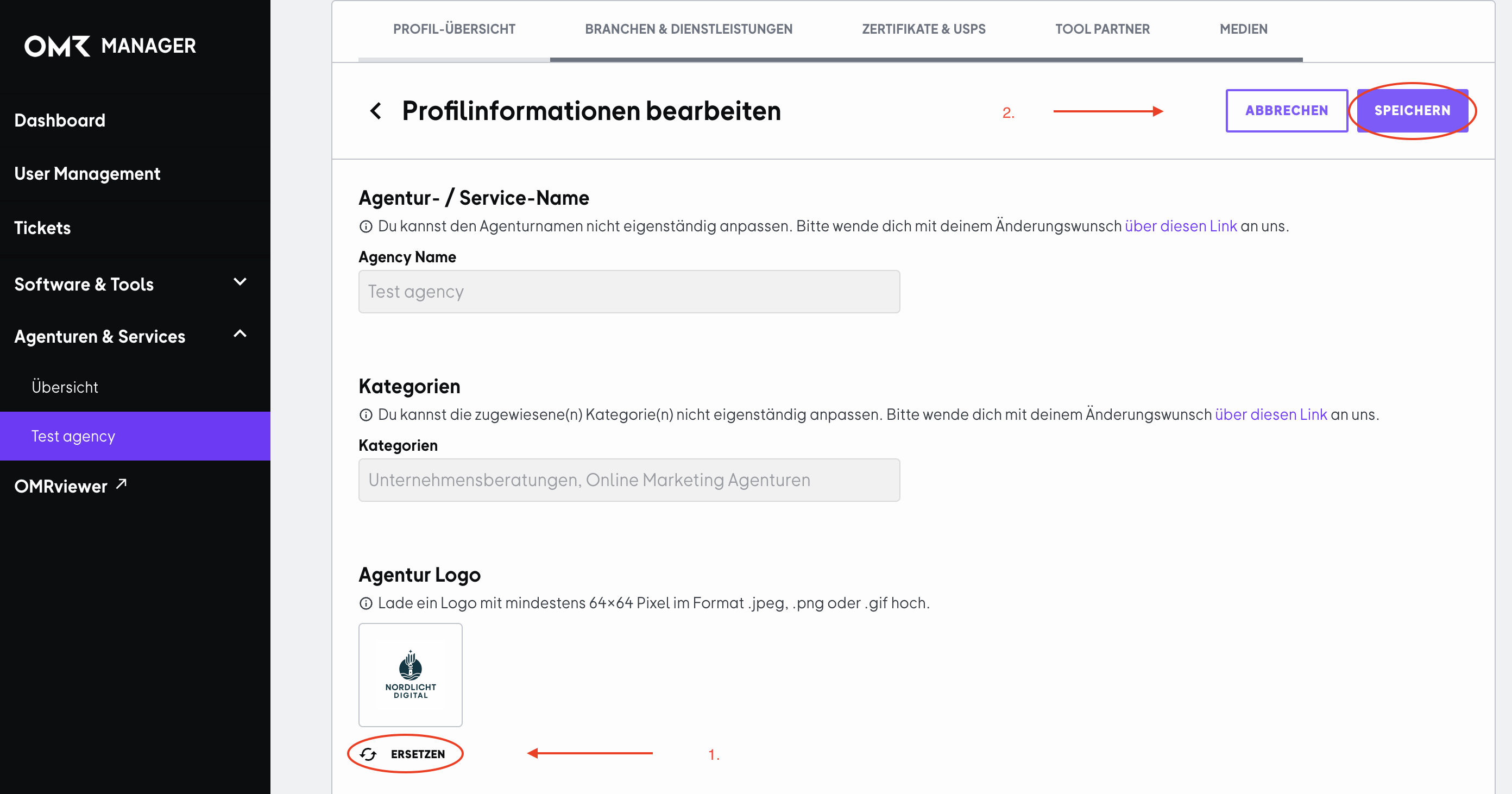
Click "Replace" below the logo tile and select the image you want. Then save your changes by clicking "Save" in the upper right corner.
Locations
Step 1
Click the "Edit" button in the upper right corner under the "Profile Overview" tab.
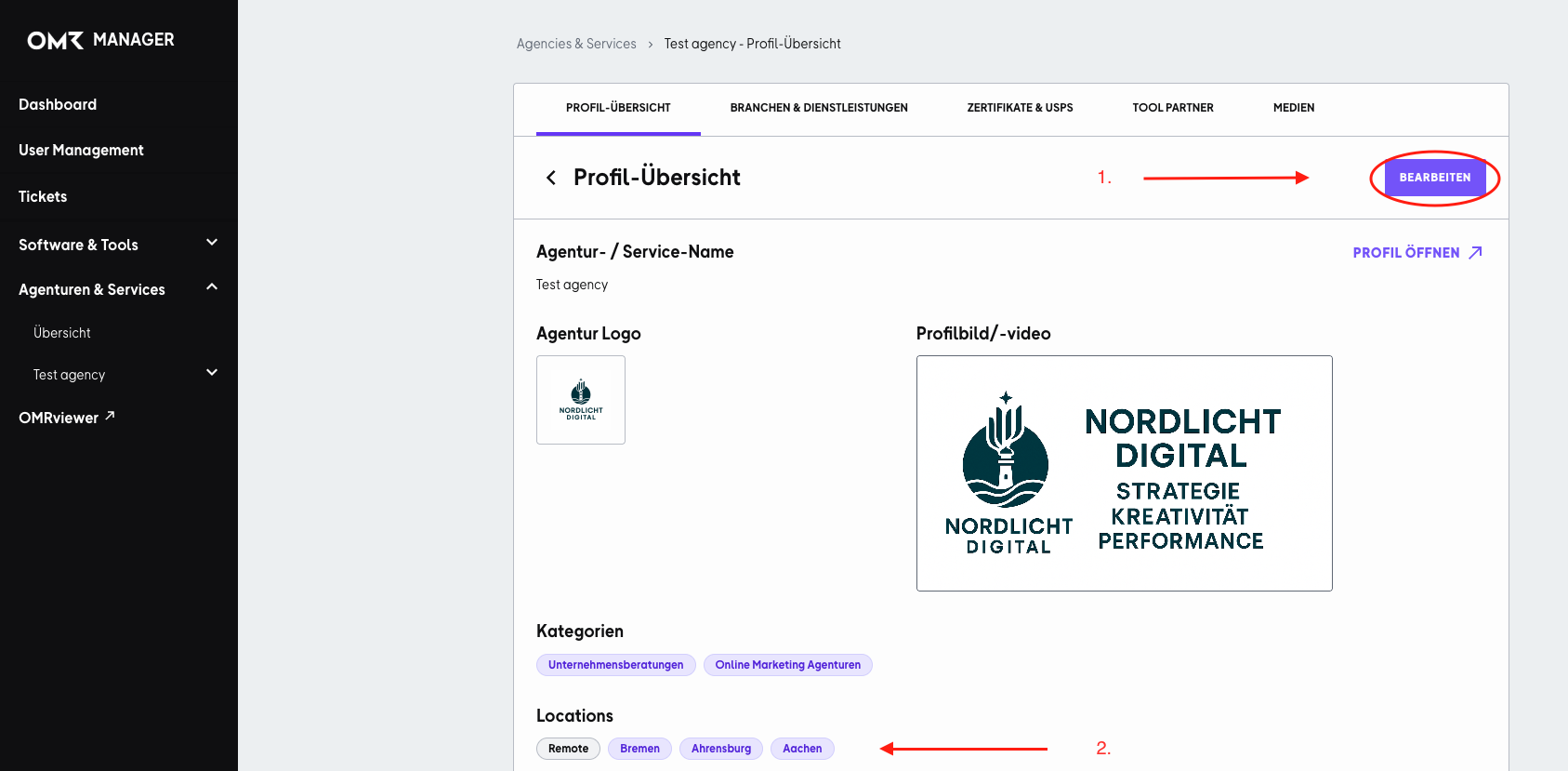
Step 2
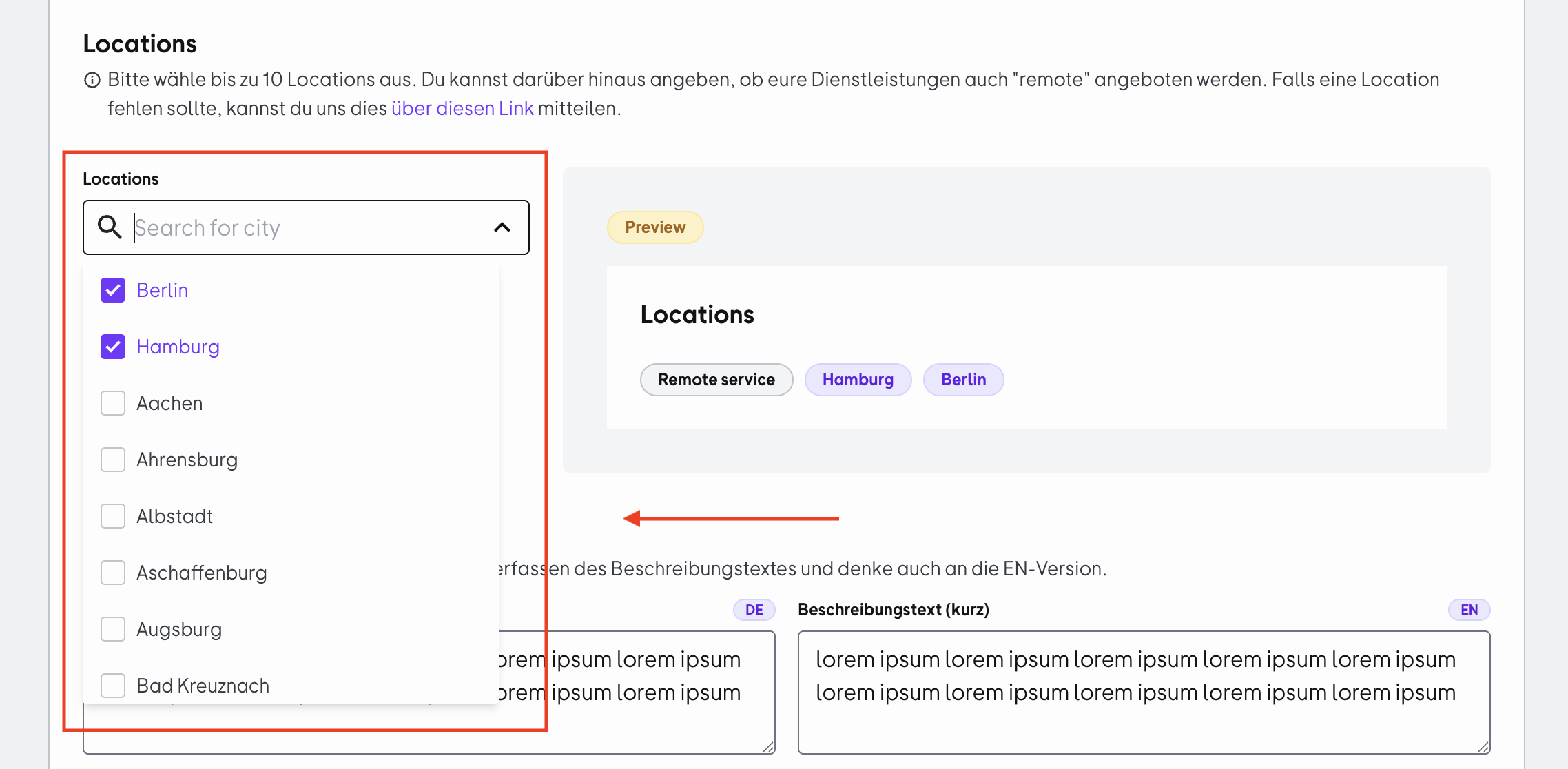
Click on the dropdown field under "Locations". A list of cities will appear. You can either scroll through the list or search for a specific city using the search field (for example, "Berlin"). Check the boxes for all cities where you or your team are active. You can select up to 10 cities. Your selected locations will appear directly in the preview window on the right.
If a location is missing, send us an email at cs-reviews@omr.com.
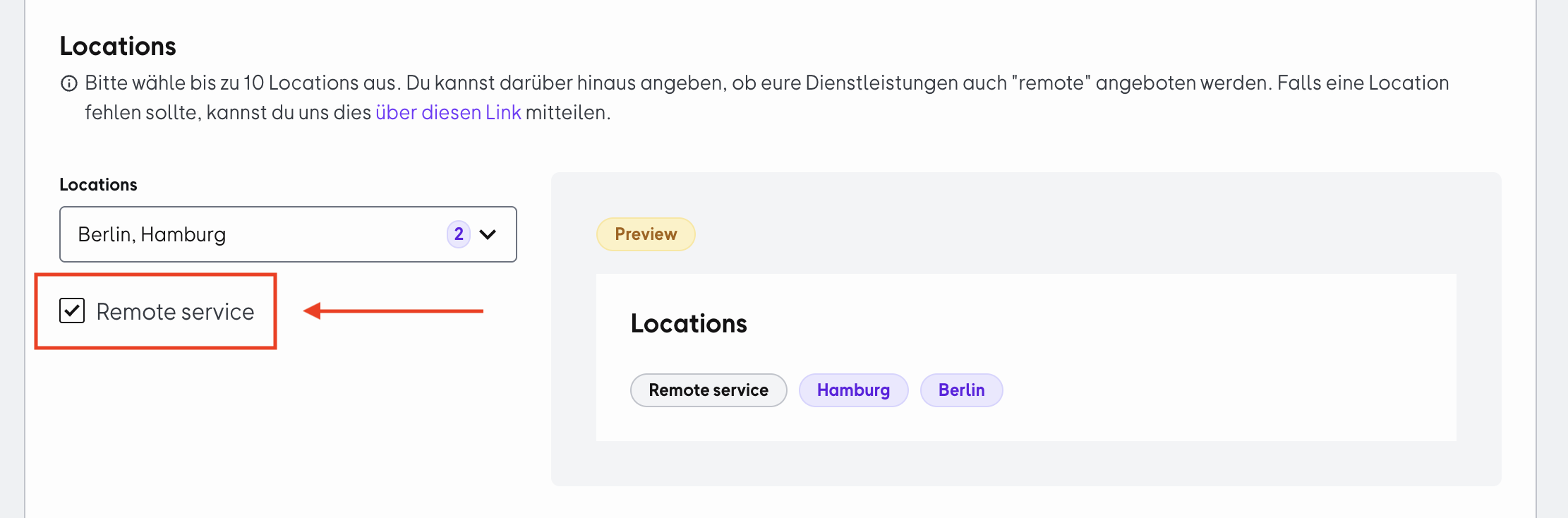
If you also offer your services remotely, activate the "Remote service" checkbox as well. This way, visitors to your profile can see right away that you also work remotely.
Don't forget to click "Save".
Description Text
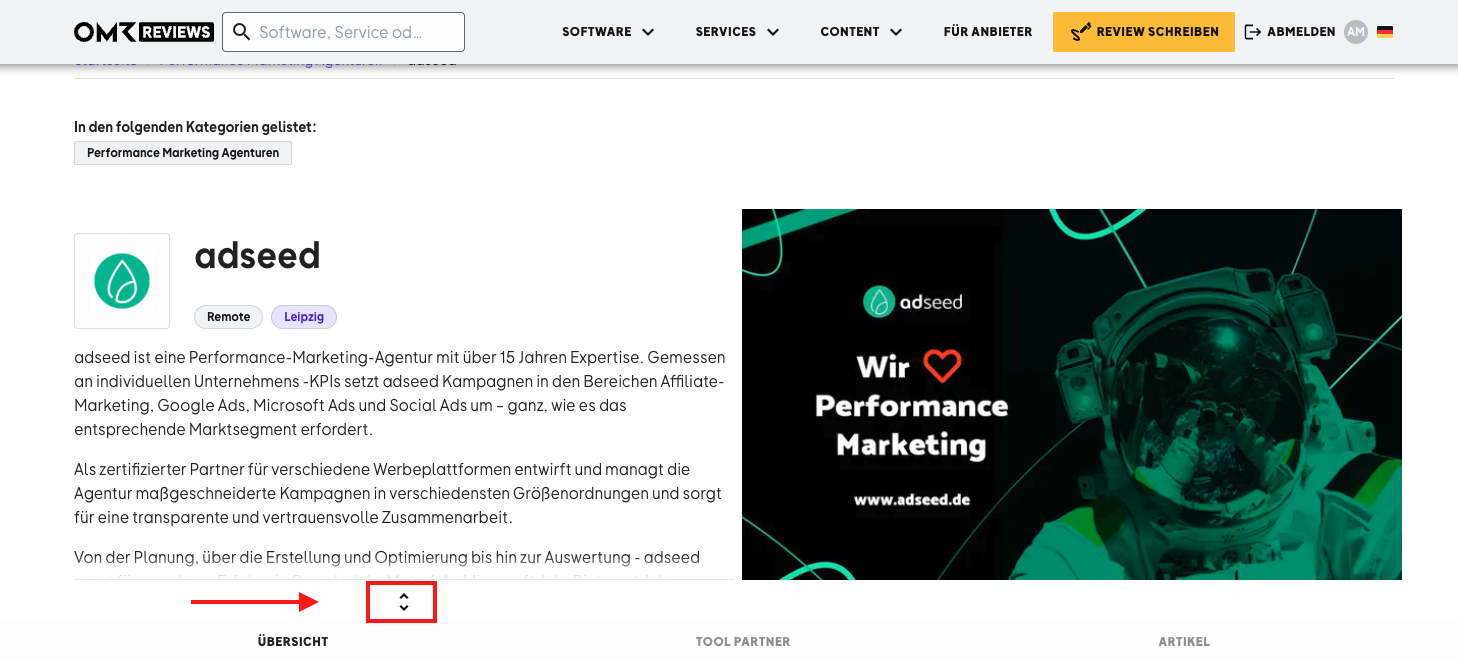
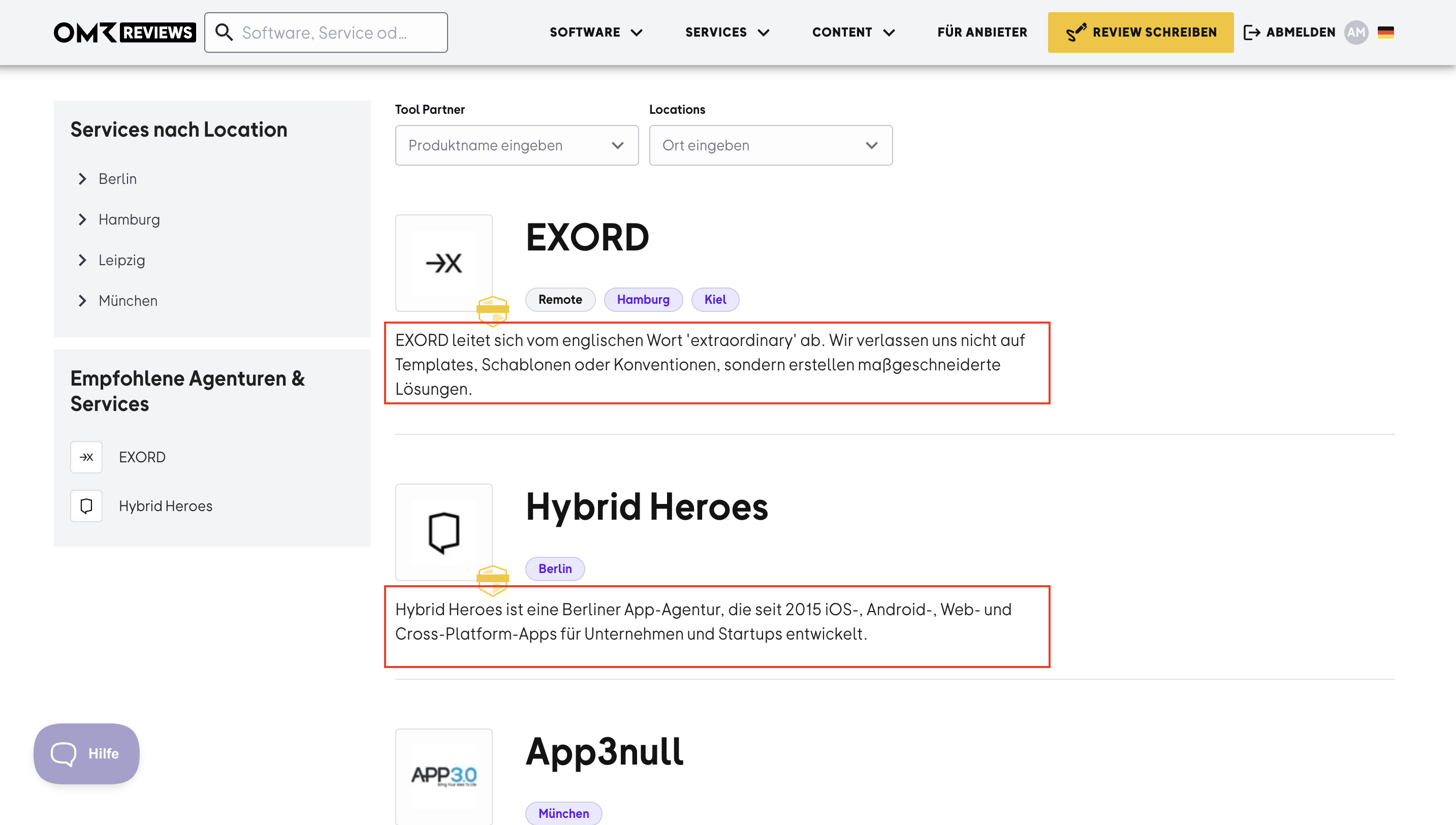
The description text appears in the upper area of your profile and can be expanded. It provides a clear and organized overview of your agency, including all your benefits, services, and common areas of application.
-2)
To customize your agency text, log in to your OMR Manager account and follow these steps below 👇:
Step 1
Click the "Edit" button in the upper right corner and scroll down further.
Step 2
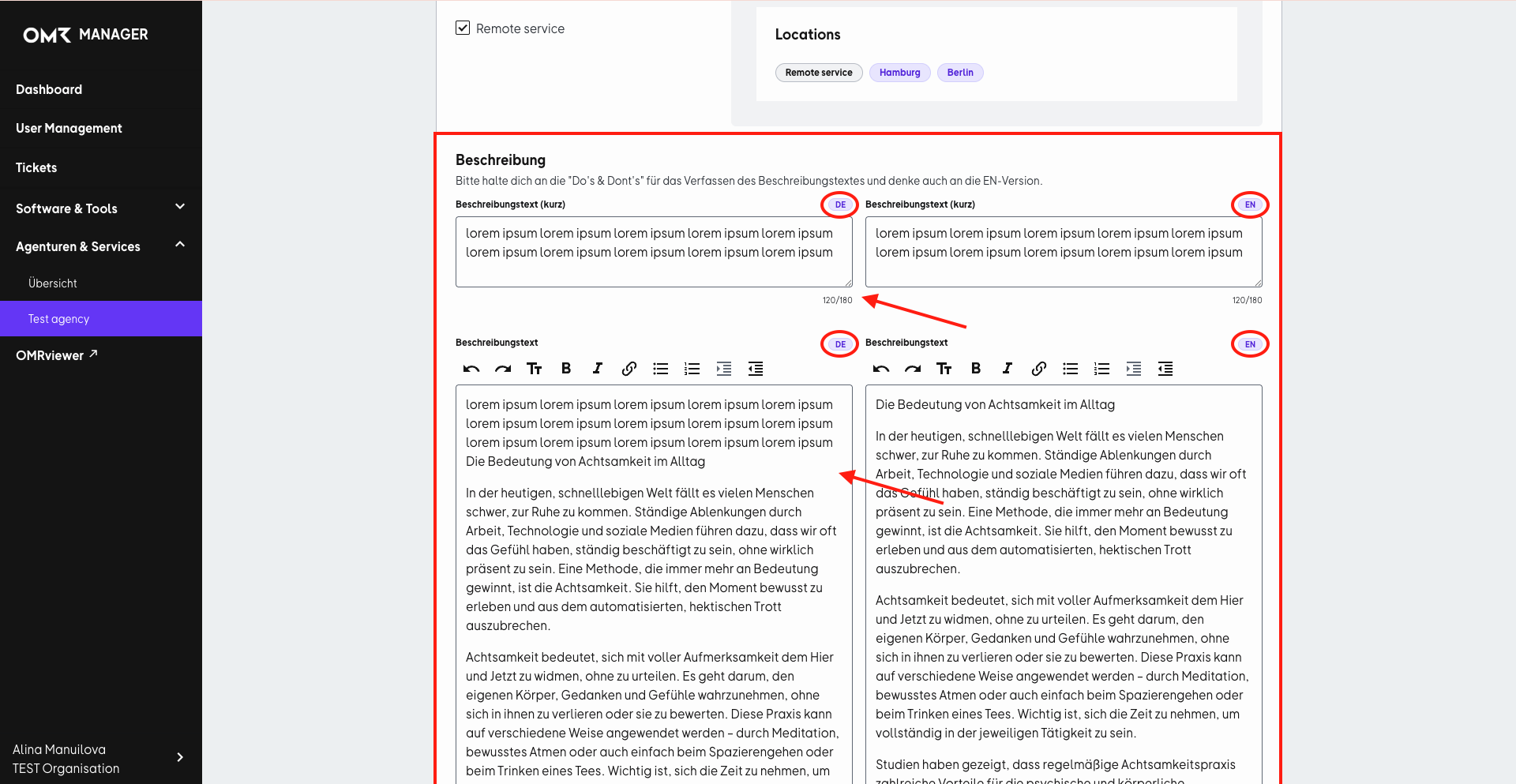
Enter a short and compelling teaser description in the "Description text (short)" field that summarizes the most important information about your agency or service in a maximum of 180 characters. The short description text will be prominently displayed on the category page.
-2)
Step 3
Enter a more detailed product or description text for your product profile in the larger text field.
✔ Write in the third person
So not "We help companies by...", but rather "Agency XY supports companies by...".
✔ Keep it factual and clear, and don't write too much like an ad
Avoid superlatives like "leading", "innovative", or "unique". Instead, show concretely what you do and what added value you provide.
✔ Pay attention to readability
Use short paragraphs, subheadings, or bullet points so people can quickly get oriented.
Tips 💡
Integrate subtle text links to specific target landing pages and add UTM parameters to your links. This way you can more effectively track and analyze the traffic coming from OMR Reviews.
It's important that you also create an English version of your description text, as OMR Reviews is also available in English. This allows you to reach a larger target audience of potential customers and increase your reach.
Step 4
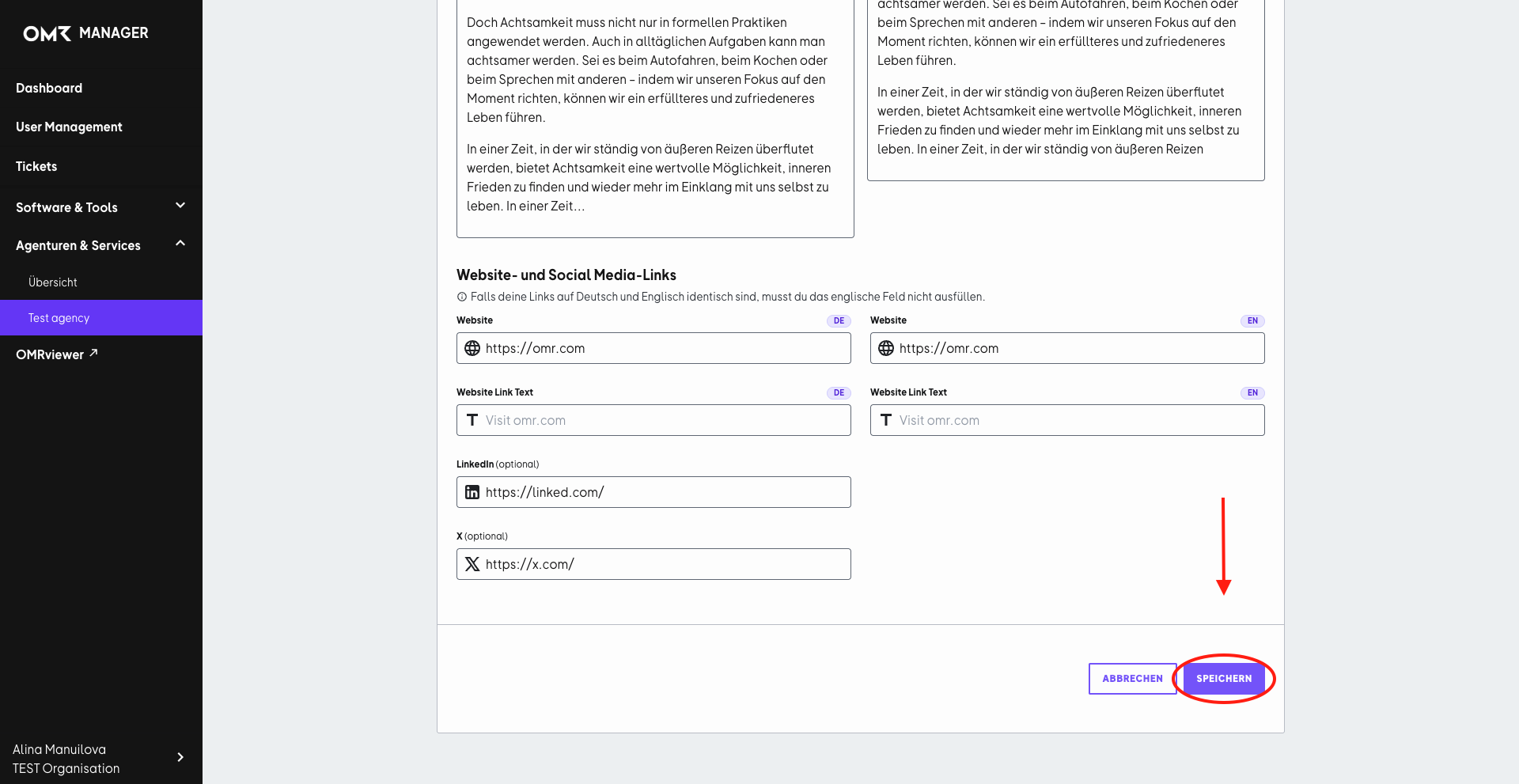
Remember to save your changes by clicking "Save" in the upper right corner or in the lower right corner (at the very bottom).
 Powered by happysupport.ai