
Interact with Reviews in OMR Manager
Respond to agency profile reviews, filter by time period and status, and export reviews as CSV directly in OMR Manager to track interactions with reviewers
More transparency and better customer interactions - Manage your OMR Reviews profile ratings directly in OMR Manager
Learn how to respond to reviews of your agency profile and keep track of your interactions with reviewers in OMR Manager. You'll also discover how to make the most of the review overview, available filters, and CSV export, plus how to manually remind reviewers about outdated or draft reviews.
What you'll find in this article 👇
- What is the review overview?
- How does the review filter work?
- Responding to reviews in OMR Manager (+Text templates)
- Manually reminding reviewers
- Exporting reviews as CSV
What is the review overview?
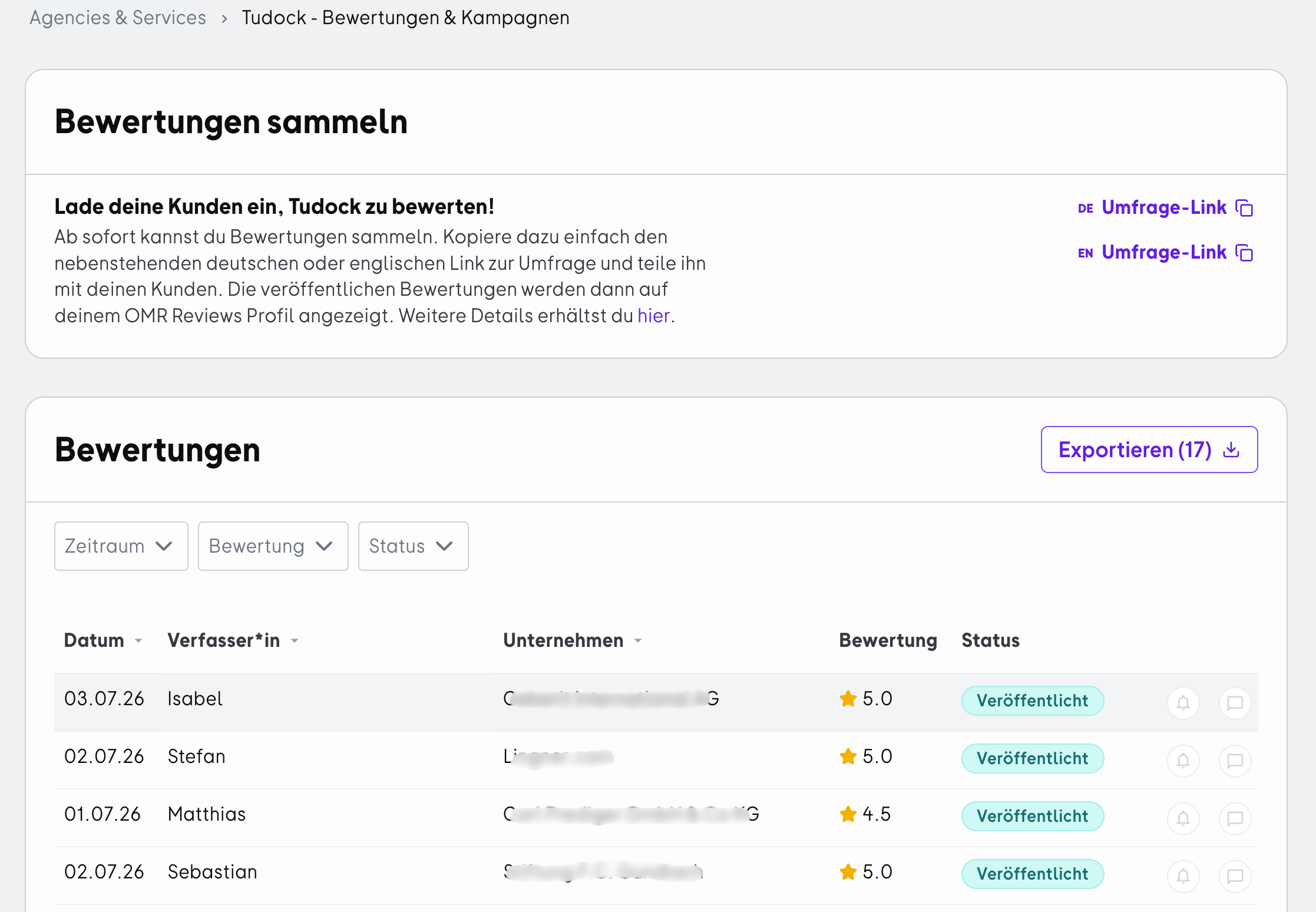
In your agency profile settings in the OMR Manager, you'll find the "Reviews" tab. Here you can see all reviews of your agency profile at a glance and interact directly with your reviewers:
- View all reviews in one place - In the "Reviews" tab, you'll find an overview of your agency profile's reviews, including information about the reviewer, the score given, and the current status of the review.
- Respond to reviews - React directly to your reviewers' feedback and show potential customers that you take their comments seriously. You can write, edit, and delete your responses directly on the review details page.
- Keep track of interactions - In the review overview, you can see whether a response has already been given to a review.
- Export reviews - Use the CSV export to export reviews from the overview and process the data outside of OMR Manager.
- Manually remind reviewers - For outdated or draft reviews, you can now manually remind reviewers to complete their review.
How does the review filter work?
The more reviews you collect, the harder it can be to keep track. That's why you should regularly use the available filters in the review overview to find the reviews you want to interact with or export.
Filter by "Time Period"
To stay on top of your reviews' freshness, you can filter by a specific time period. This lets you look at reviews from a particular timeframe and see, for example, which reviews were most recently given to your agency profile.
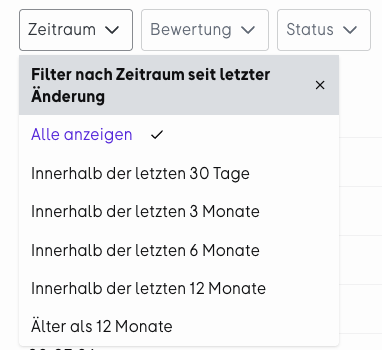
For older reviews, it's also worth regularly checking the content and assessing whether there are any relevant learnings for your agency or customer communication.
Filter by "Rating"
Here you can organize your reviews by their rating and specifically look at positive as well as negative reviews.
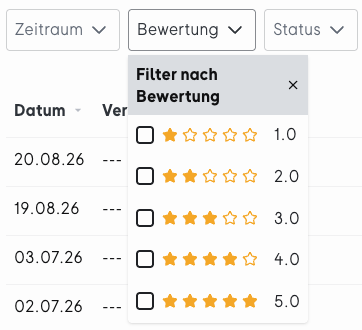
Positive reviews give you the opportunity to thank your reviewers for their feedback and address specific aspects of your collaboration.
You should also keep an eye on negative reviews. They can provide you with valuable feedback and show you where there's room for improvement in your working relationship. A professional and constructive response helps you handle critical feedback with confidence.
Filter by "Status"
With this filter, you can sort reviews by their current status and specifically view reviews where interaction might be relevant.
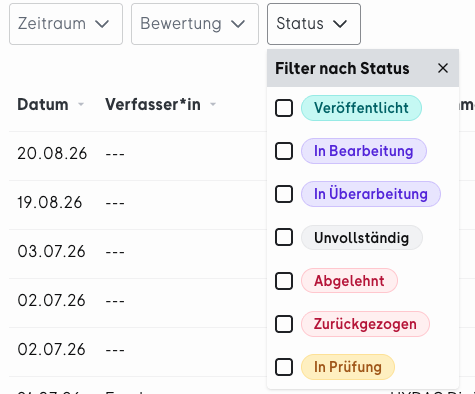
- Published: The review is complete, has been successfully verified, and is published on your agency profile.
- In Progress: The reviewer is currently writing a review but hasn't submitted it yet.
- Under Revision: The review was rejected and is being revised by the reviewer.
- Incomplete: The reviewer started writing a review more than 45 days ago but hasn't submitted it yet.
- Rejected: The review doesn't comply with our guidelines and was rejected during the review process.
- Withdrawn: The reviewer withdrew the review after publishing it.
- Under Review: The review has been submitted and is being verified by the OMR Reviews team.
Interactions and Reminders at a Glance
In the review overview, you can also see at a glance whether you've already interacted with a review.
From the status, you can tell:
- Reminder sent: An automatic or manual reminder has been sent to the reviewer about this review.
- No reminder email sent: No automatic or manual reminder has been sent for this review yet.
- Review response published: Your response to a review has been published on your OMR Reviews agency profile.
- No review response yet: You haven't written and published a response to this review yet.
You'll find information about reminders and responses directly in the review overview. This makes it easy to see which reviews you've already interacted with and where action is still needed.
Responding to Reviews in OMR Manager (+Text Templates)
To interact with reviews, log into the OMR Manager and open the "Reviews" tab in your agency profile settings.
Step 1: Go through the overview
You'll see all reviews of your agency profile, including information about their status and whether you've already interacted with the reviewer.
Click on a review to open the review details page.
Step 2: Respond to a published review
For a published review, you can respond directly to the customer feedback. Click the "Respond to Review" button.
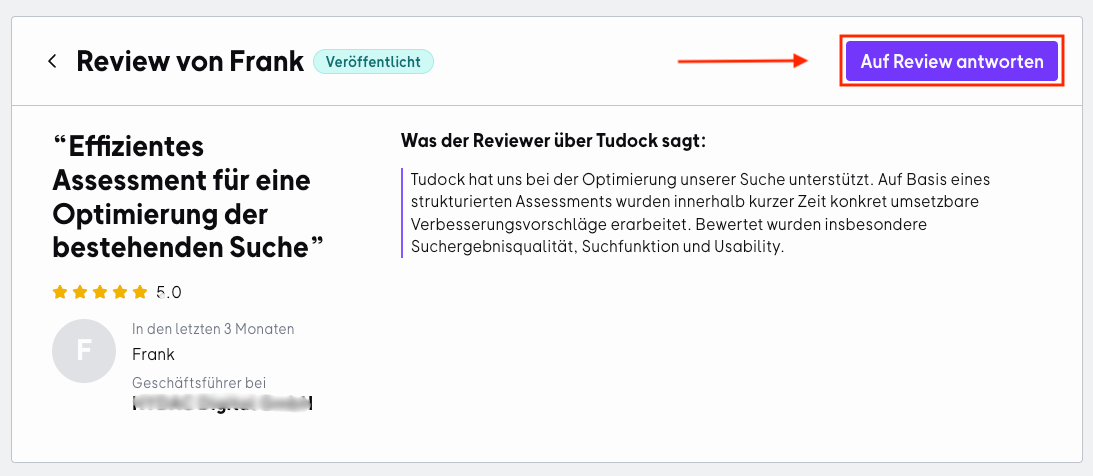
Your response can be a maximum of 1,200 characters long.
Each response should be as personalized as possible so reviewers know you take their feedback seriously and value it. At the same time, your response gives you the opportunity to show potential new customers how your agency handles feedback.
For quick guidance, you can use the following text templates:
- Positive Review
Dear [Name],
Thank you so much for your wonderful feedback and for taking the time to write your review! We're thrilled to hear that [address a specific point from the review here].
We look forward to continuing our work together and are always happy to help with any questions or requests.
Best regards
[Your Name] and the [Your Agency Name] Team
- Negative Review
Dear [Name],
Thank you for your honest feedback and candid words. We're sorry that [address the specific point from the review here] didn't meet your expectations.
We take your feedback seriously and want to take this opportunity to find a suitable solution together. Please feel free to contact us directly so we can discuss your concerns personally.
Best regards
[Your Name] and the [Your Agency Name] Team
Add your response to the text field and click the "Publish Response" button.
Edit or Delete Responses
You can edit or delete your published response at any time on the review details page.
This allows you to adjust your communication with reviewers after the fact and ensure your responses stay current and appropriate.
Reviews are an important part of your agency profile on OMR Reviews. Your responses are therefore relevant not just to the person who left the review, but are also noticed by potential customers.
An individual and authentic response usually has more impact than a generic standard answer. Try to address the specific review as concretely as possible and avoid purely generic phrasing.
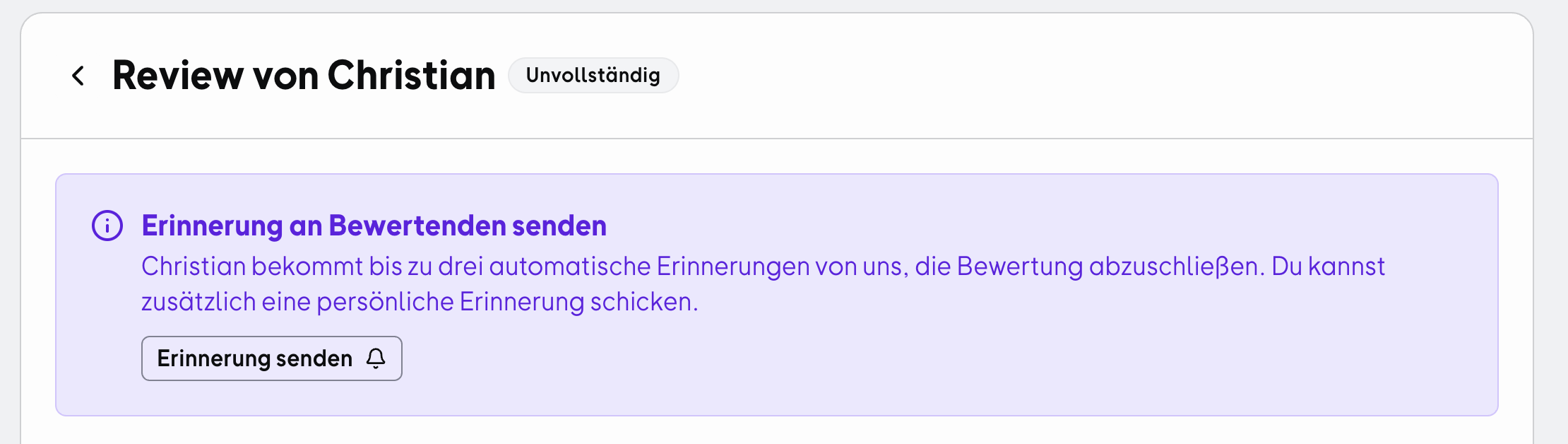
Manually Reminding Reviewers
For outdated or draft reviews, you can manually remind reviewers about a review.
Exporting Reviews as CSV
In the review overview, you can export your reviews as a CSV file. This allows you to process the data structurally outside of OMR Manager, for example for internal evaluations or reports.
You can first use the available filters and then export the filtered reviews.

If you have any questions or technical issues, our support team is happy to help. Just contact us by email at cs-reviews@omr.com.
Good luck managing your reviews and building even stronger customer relationships!
 Powered by happysupport.ai