
➡️ How to Get Started with OMRviewer
Connect your HubSpot, Pipedrive, or Salesforce CRM to OMRviewer through OMR Manager to enrich contact data with buyer intent signals
Get familiar with OMRviewer and create your first filter
Getting started with buyer intent data using OMRviewer might seem complex at first. To help you unlock the full potential of the data quickly and efficiently, we've put together some tips. They'll help you get comfortable with OMRviewer and smoothly integrate the data into your existing workflows.
Step 1: Log in to OMRviewer
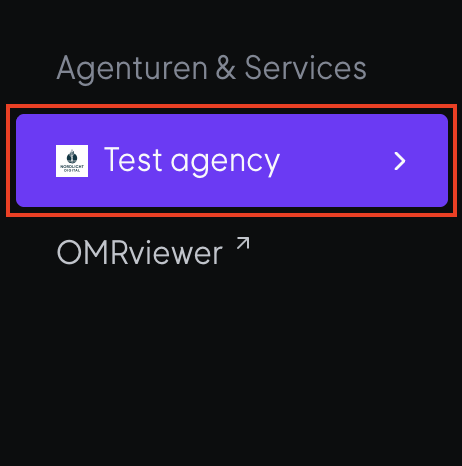
-
Sign in to OMR Manager.
-
Navigate to the Agencies & Services section in the left menu.
-
Click on OMRviewer at the bottom of the menu.
-
A new window opens and you're now logged into OMRviewer.
Step 2: Watch the OMRviewer intro video
Step 3: Get familiar with how OMRviewer is structured
It's completely normal to need some time to get the hang of new tools. Grab yourself a cup of coffee and block off some time to familiarize yourself with how OMRviewer is structured.
👉 Find information about OMRviewer's structure here
👉 Learn about the different signal types for agencies here
Step 4: Create your first filter
Think about which signal types are most valuable for you and create your first filter.
👉 Find instructions on how to create your first filter here
Step 5: Connect OMRviewer with your CRM system
Data is only as powerful as how well you integrate it into your ongoing processes. Use the integration with HubSpot, Pipedrive, or Salesforce to automatically enrich your contact data with intent signals.
This way, both your sales and marketing teams can use the data for further campaigns and outreach efforts.
👉 Find instructions on how to connect OMRviewer with your CRM system here
 Powered by happysupport.ai