
Filter Examples for Agencies
Filter companies by session duration, intent score, category, industry, and location in OMRviewer to identify your ideal prospects
Use filter options to identify the most interesting companies for you.
The flood of data can quickly feel overwhelming, especially when it comes to identifying the right companies or sessions in OMRviewer. That's exactly where filter functions come in: they help you focus on specific account groups.
With filters, you can:
-
Find relevant companies that work with your products or services.
-
Hide irrelevant data, such as companies that don't belong to your target audience.
-
Identify companies that match your ideal customer profile.
-
Work more efficiently by saving recurring search criteria as filters.
Using the filter function
Sessions vs. Companies
Depending on what you want to analyze, you can filter at session level or company level:
- Session level: Filter for individual visits on OMR Reviews. Ideal when you want to see which users have intensively engaged with specific tools or categories.
- Company level: Filter for entire companies that were active on OMR Reviews in a specific time period. Perfect for lead research.
When filtering, your imagination is the limit. Try out different options and decide which filter settings are most relevant to you and provide the most interesting and strongest signals for you.
-
Simply click on Companies in the left menu and then on Filter. You'll also find your already saved filter settings there, as well as a few predefined templates to get started.
-
Click on Filter in the top left to access the filter settings. Don't forget to save your filter after creating it so you can access it later.

-
In the filter settings, you can create rules based on session duration, intent score, category, company name, industry, postal code, and city, and organize them into groups.
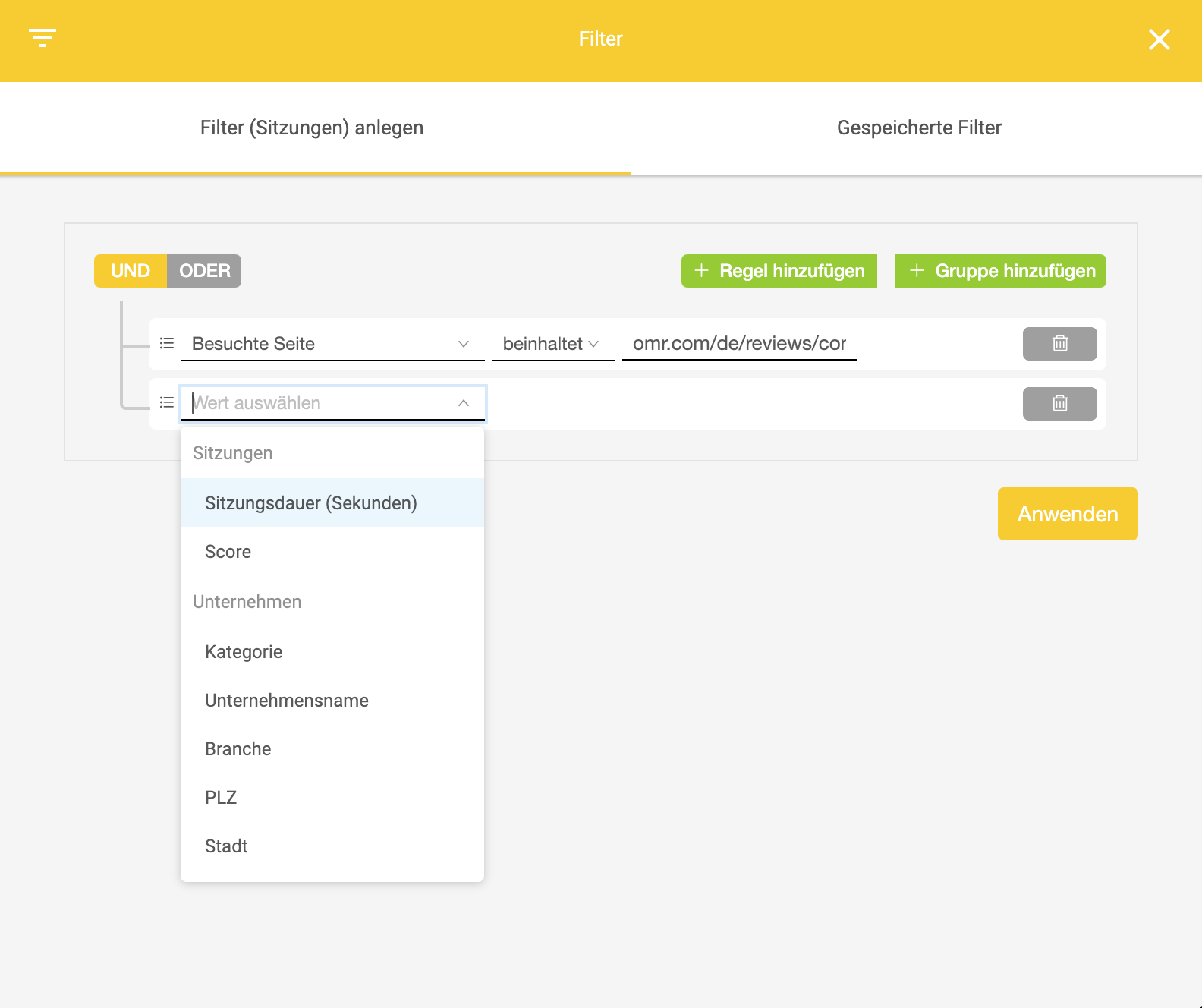
If you've linked your CRM with OMRviewer, you can use your saved filters directly for your lead management. This way, qualified companies that match your filter criteria automatically flow into your CRM system, allowing you to follow up more efficiently.
For Agencies
Industry filter - Exclude irrelevant companies
As an agency or consultant, you might want to exclude other agencies from your analysis. It's really simple:
- Open the filter area at the company level.
- Select the option "Industry is not equal to".
- Enter relevant categories, for example:
- Marketing & Advertising
- Consulting & Advisory
- Services
- Information Technology
- Click "Apply" - and you'll only see companies that could potentially become customers.
Visited pages - Identify companies with special interest
Let's say you're a Google Ads expert and want to reach out to companies interested in Google products. The filter for visited pages can help you:
- Select the option "Visited page contains".
- Enter the term "Google".
- OMRviewer now shows you all companies that have visited a page containing "Google" in the name.
- What's particularly interesting: these companies have actively engaged with Google products and could be interested in your services.
Combining filters for maximum precision
The real power of filters shows when you combine multiple filters. For example: you're looking for companies interested in Google products, but that aren't agencies.
Arrow Filter 1: "Visited page contains Google"
Arrow Filter 2: "Industry is not equal to Agency"
This gives you a highly qualified list of potential customers who are actively engaged with relevant topics.
More filter examples
"Competitors"/pricing
"your agency"
"Competitors"
Article slug
Article slug + Visited page contains (not) "Name"
"Tool name" (to filter by technology partner)
Industry:
e.g. Customer Service
Industry does not contain: Services, Information Technology, Marketing & Advertising (to filter out other agencies and consultancies)
Category
Category URL slug
Session duration > 600 + Page views > 2
Country: Germany + Postal code between 2000 - 2500
 Powered by happysupport.ai